How to Add Rounds on Pro
The Pro version of Upgame allows for in-depth round entry with advanced metrics, giving you the most detailed performance analysis possible. Here’s how to add a round step by step.
STEP 1
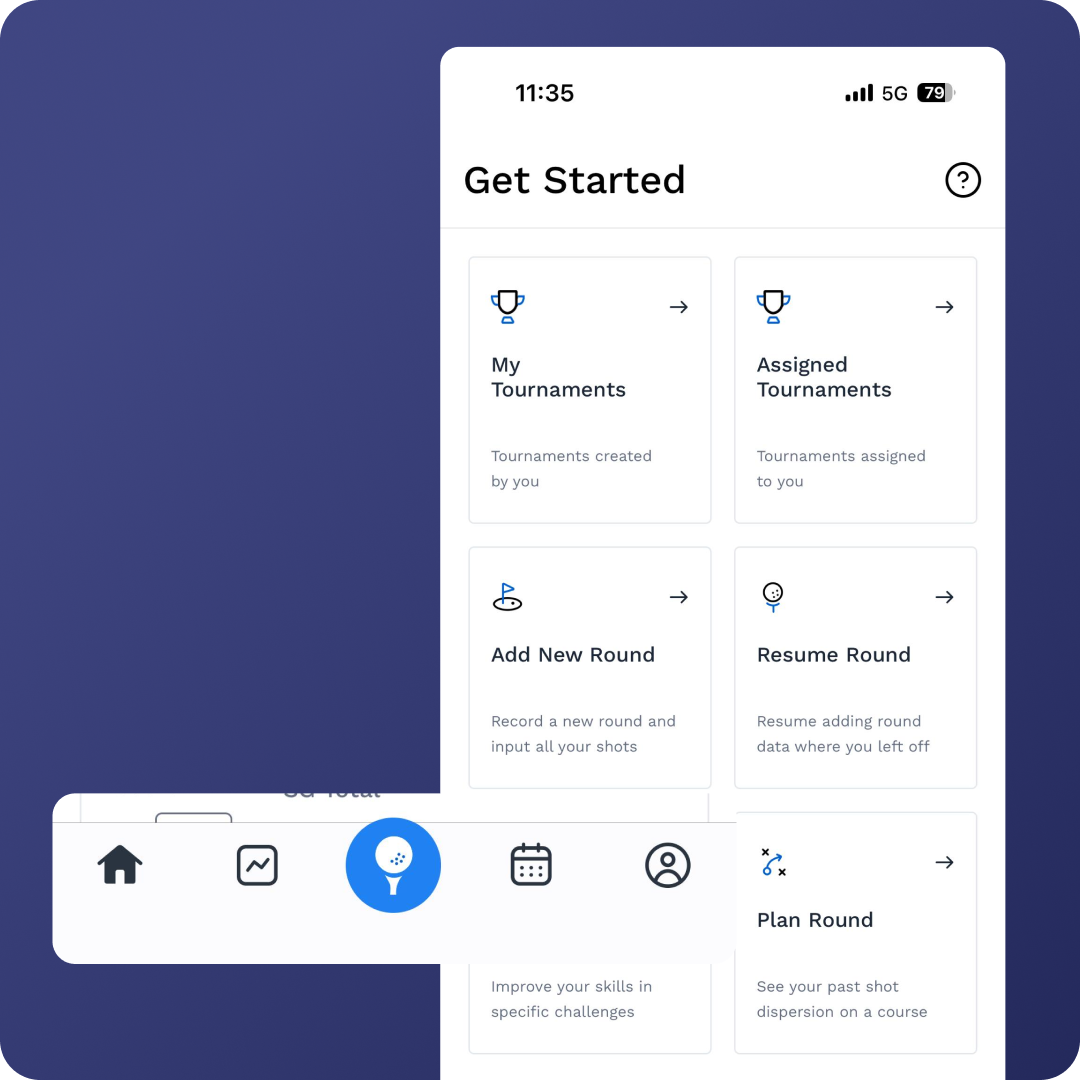
Access the Add Round Feature
Tap the golf ball icon at the bottom of the screen.
From the Getting Started page, select “Add New Round.”

STEP 2
Select Your Course & Round Type
Type in the course you want to log your round on.
Choose whether it’s a:
1. Practice Round
2. Tournament Round → Requires extra details:
Tour Name
Tournament Name
Round Number
3. If it’s a Qualifier, slide the qualifier bar to the right to activate it.
Optionally add date and time for more accuracy.

STEP 3
Quick Score Option
You may enter only your scores if you prefer.
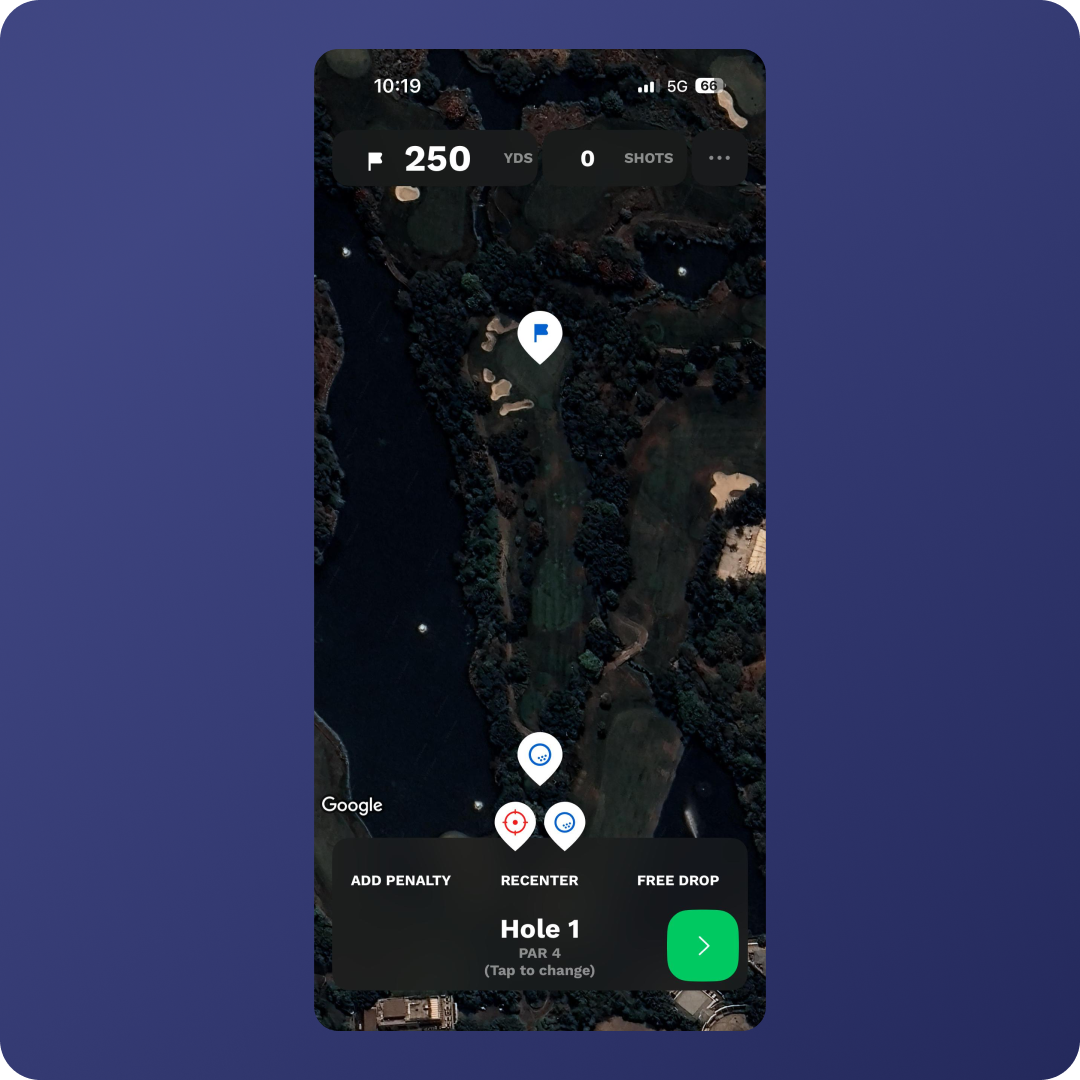
Otherwise, press Play to open the satellite map of the course with the Upgame interface.
STEP 4
Navigating the Interface
Top Bar: Total yardage, shots hit, options menu (round summary, tutorial, end round).
Bottom Bar:
Add Penalty (for lost balls/unplayables)
Free Drop (Pro only)
Recenter Map (adjust view)
Green Arrows (move to next/previous hole)
👉 Before starting, always adjust tee and pin positions by dragging the golf ball (tee) and flag (pin) to their correct locations.
STEP 5
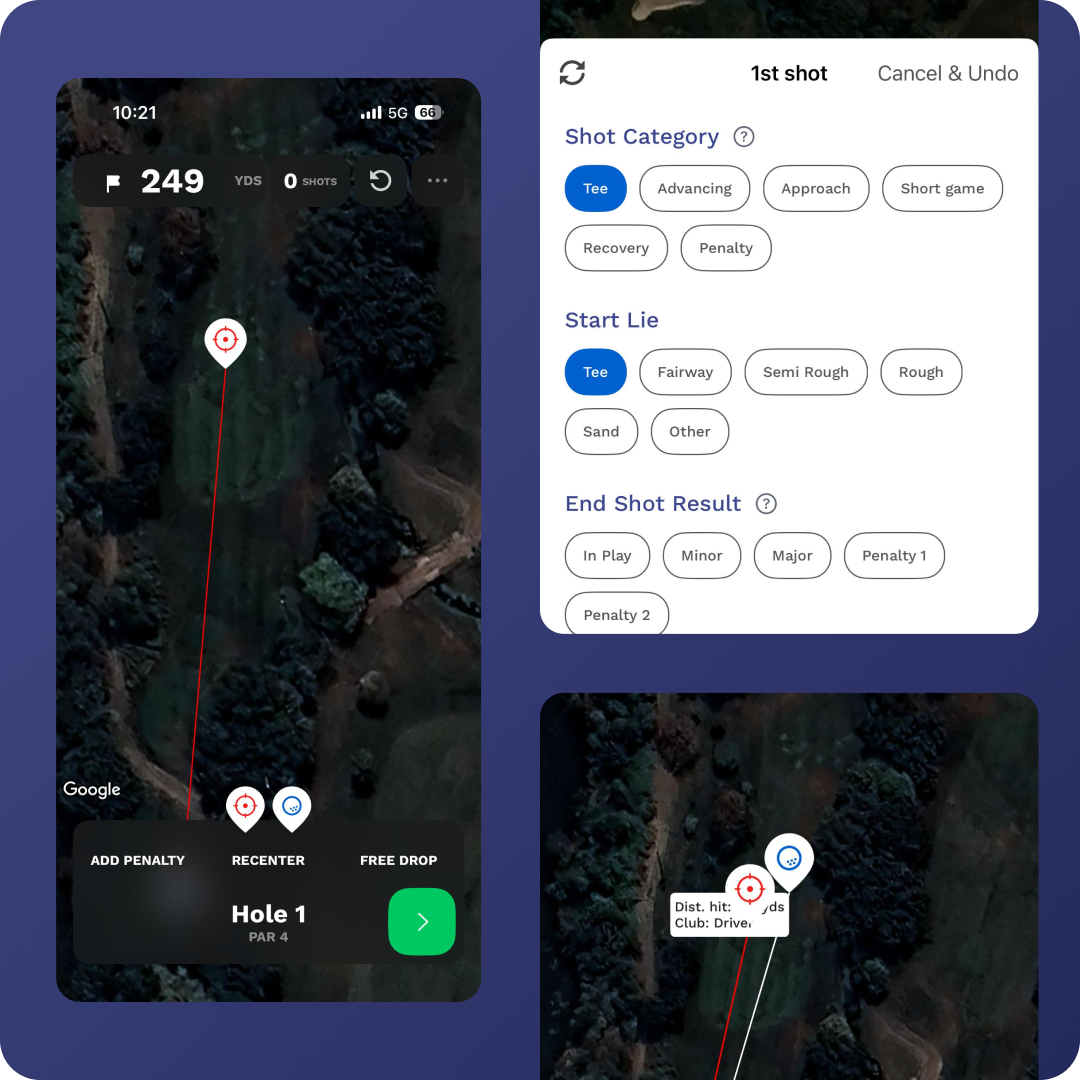
Tee Shot: Target & Shot Entry
Select Intended Target: Tap the target icon and drag it to the planned landing zone.
Place Shot: Drag the golf ball to where the shot finished.
Fill Shot Details: A window opens to record metrics:
Shot Category (auto-detected)
Start Lie (auto-detected)
End Result:
In Play → Good position for next shot
Minor Miss → Sub-optimal but manageable
Major Miss → Out of position, forced recovery
Penalty 1 → Hazard
Penalty 2 → Lost ball, re-tee
Optional Metrics
Mental Process: Very Poor → Excellent
Club (required)
Shot Type: Fade, Draw, Low, Bomb
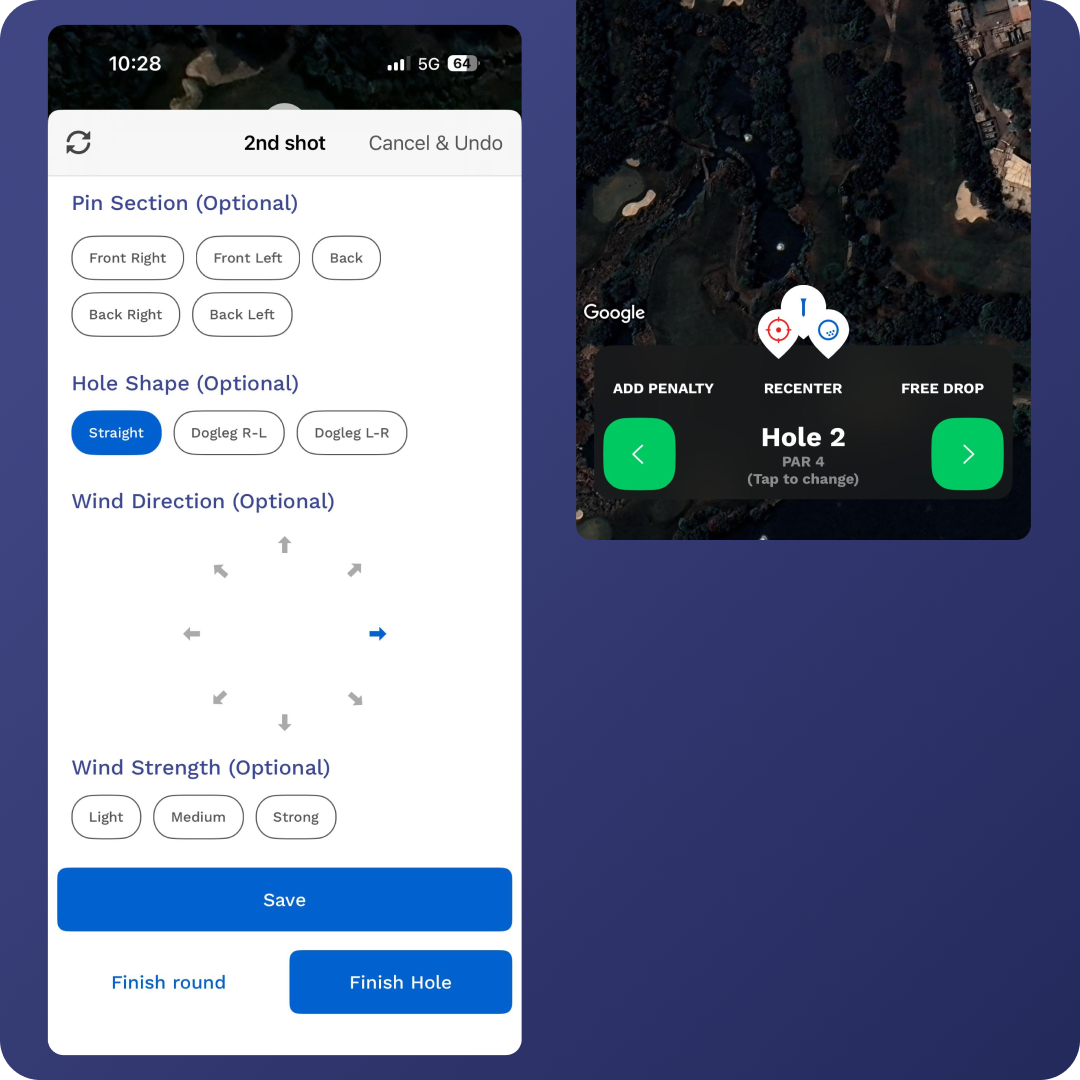
Pin Section: Track performance by green section
Hole Shape: Straight, Dogleg Left, Dogleg Right
Wind Direction & Strength
Press Save to log and advance to the next shot.

STEP 6
Entering Shots
Tap the golf ball icon on the bottom menu and drag it to where the shot finished.
Once placed, the app automatically logs:
Distance hit
Distance remaining to pin
Lie
Repeat this process for each shot until you reach the green.

STEP 7
On the Green: Putting Entry
When reaching the green, a putting window appears.
Data to Enter:
Distance → Adjust with +/– buttons for accuracy
Speed Result:
Past → Rolled beyond hole
SZ Past → Past but within Save Zone (2 ft radius, or 10% of distance if >20 ft)
Holed → Putt made
SZ Short → Short but within Save Zone
Short → Left short outside Save Zone
Optional Putting Metrics
Speed Ratio → Distance remaining ÷ putt length (inches short/long)
Break → Track by break type for drill-based improvement
Line → Missed Left, Right, or On Line
Slope → Categorize severity of break
Mental State → Very Poor → Excellent
If the result is anything other than Holed, the next putt entry will automatically appear.
STEP 8
Finish the Hole
After finishing each hole, select “Finish Hole” to move to the next.
Continue until the round is complete.
✅ Tip: Pro round entry takes longer but provides deep insights into dispersion patterns, mental performance, and situational stats — making it the most powerful way to use Upgame